
Add The Kobo App To Your Kindle
Why You Need The Google Play Store App
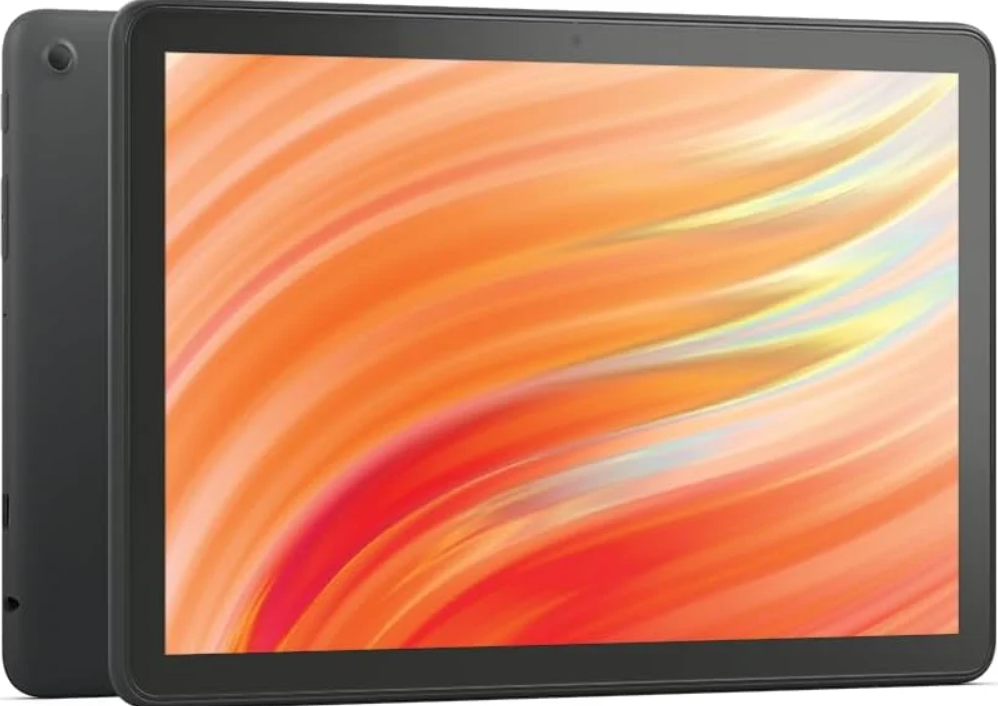
Amazon naturally wants to do everything it can to make you use Kindle Unlimited and not another subscription program from a competitor vendor. This is the case with the Kobo app, which is necessary to participate in the Kobo Plus plan.
So we have to install Google Play Store to download and install the Kobo app.
Kindles are basically Android devices, which means you can run the Google Play Store app on it. However, you need to do a little technical install. The step-by-step instructions below if followed closely will help you get the Kobo app on your Kindle, with the exclusion of Paperwhites.
Because you are downloading files to your Kindle tablet, you are not doing any modification to your root directory of the device. Installing the APK files to you tablet is essentially the same as installing any app or game to your Fire Kindle. Based on a detailed review of the Warranty information on Amazon's website, installing Google Play store WILL NOT void your warranty. Amazon just doesn't want to make it easy for you. It's important to note that Amazon's app store leaves a lot to be desired when it comes to apps and games available, which is why installing the Google Play Store app will expand your choices of apps to be installed.
Try Installing The Kobo App To Your Kindle First
Some older Kindle Fires will be able to download the Google Play Store app for an easy install of the Kobo App. The new Fire 11 tablet does not have this capability. The Fire HD 10 might not have the ability either.
But before you follow the steps below, try visiting kobo.com/us/en/p/apps or UK link kobo.com/uk/en/p/apps or Canada http://kobo.com/cn/en/p/apps
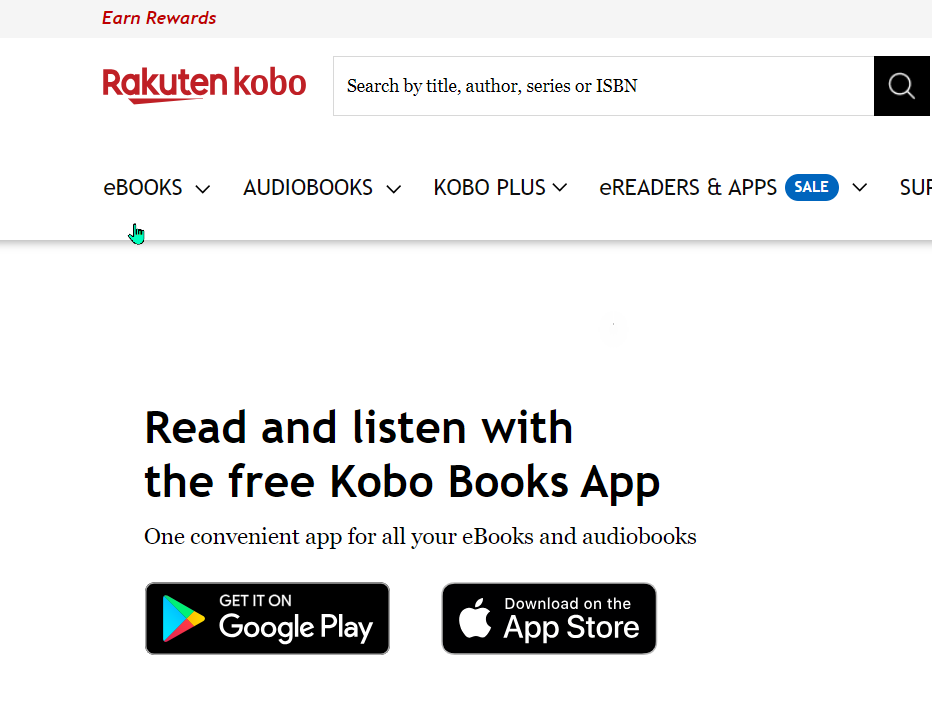
Click on the Android app install. If you can install the Kobo Book App via the link, then you're good to go.
If installing the Kobo app via the link doesn't work for you, then follow the steps below. To make things easier when it comes to downloading the APK files, it's probably easier to do all the file downloads on your computer, and then copy them over to your Kindle from the computer. Then install the Google Play Store App on the Kindle from there.
Setup The Kindle For Installing The APK Files
These instructions should work on any Fire tablet. Paperwhites can not have the Google Play store installed as it is a basic eReader.
IF you have a SD card installed on your Fire, it's best to remove the card to avoid any potential damage of your data on the SD card.
Step 1 - Prepare the Kindle
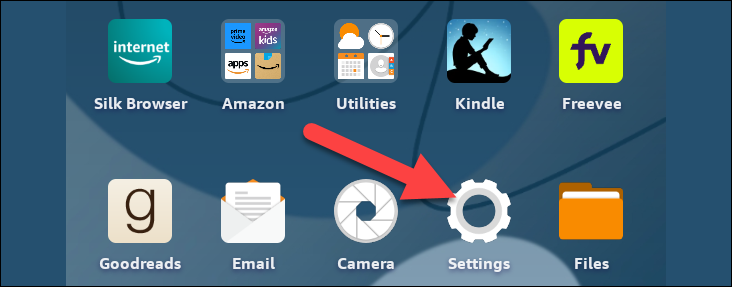
Click on settings on your Kindle's home screen
Step 2 - Prepare the Kindle
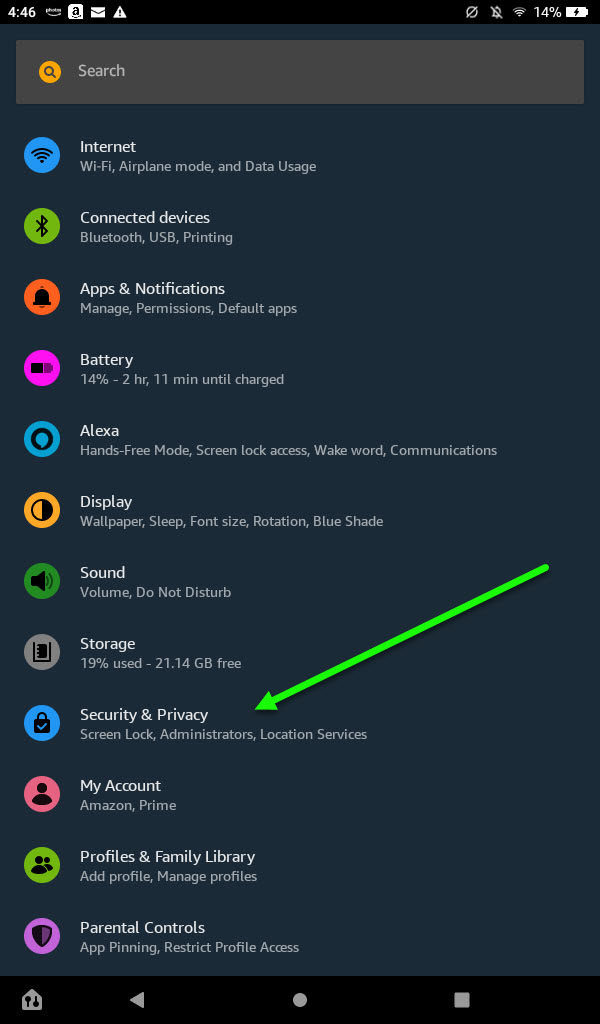
Go to Security & Privacy menu item
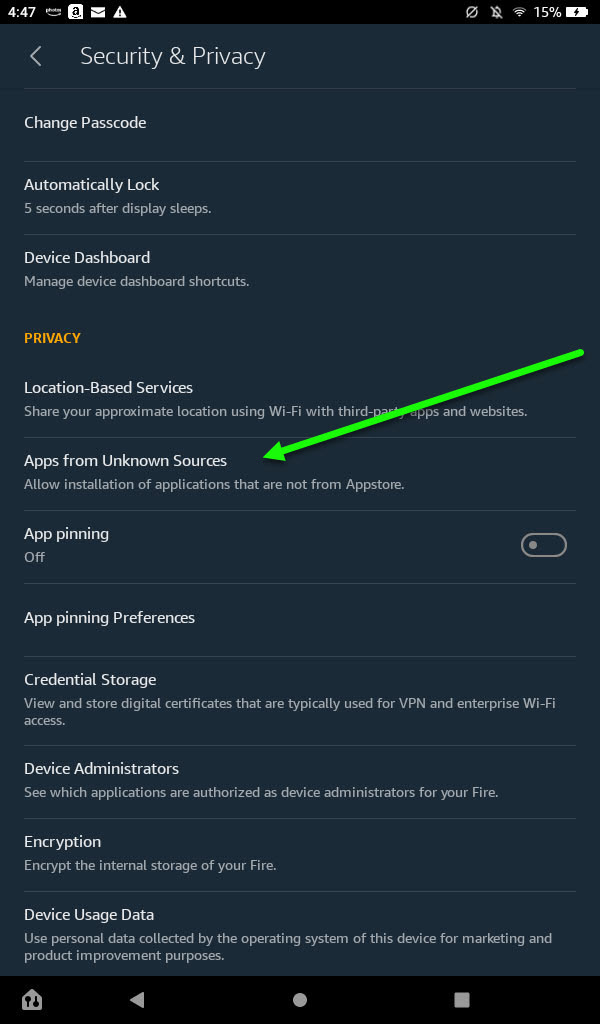
Select Apps from Unknown Sources
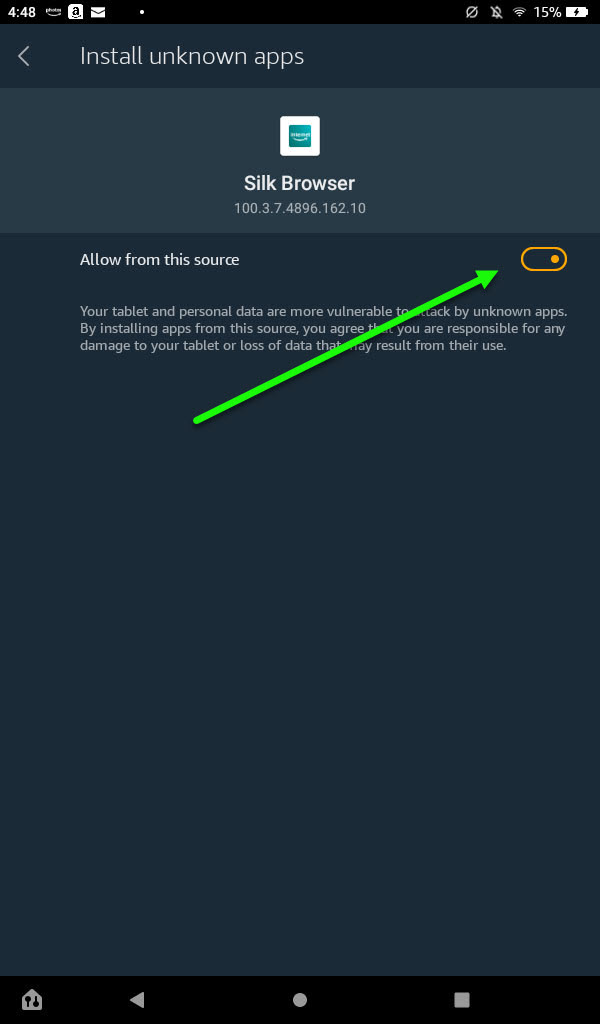
Select Silk Browser. Turn on the Allow from this source slide box.
Step 3 - Determine what generation of Fire you have
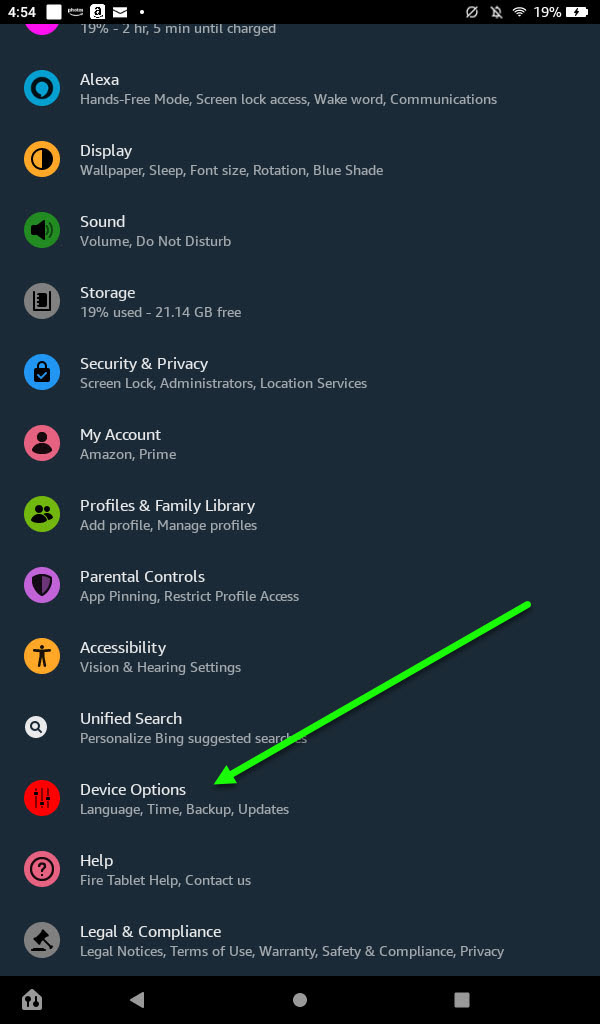
Click on Device Options
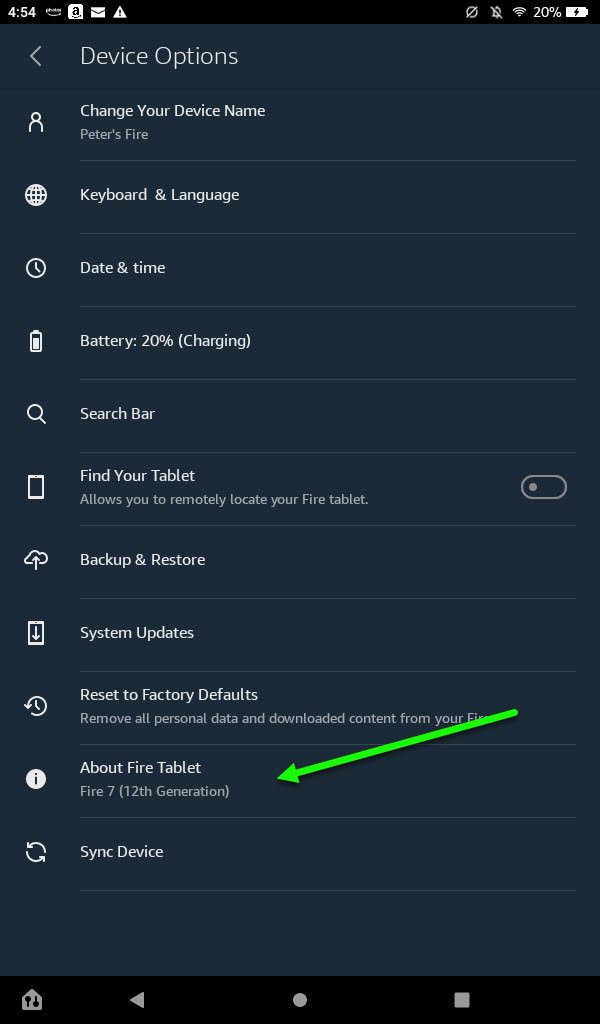
Under the About Fire Tablet, note the version of Kindle Fire you have.
Under the About Fire Tablet, note the version of Kindle Fire you have.
Step 4 — It's now time to download the APK files and install them. This is relatively easy to do.
The APK Mirror website is a reliable and trustworthy site for downloading APK files. However, the ads on the page are pretty deceptive, and it's easy to click the wrong button. There will also be popups that open, just close them. However, make sure you click the button that says Download APK . If you go slow, you'll find it very easy to download the four files.
Downloading these files might be easier to do on the computer, then you simply have to copy them from the computer to your Kindle.
Step 4a — Download Is The Google Account Manager APK File
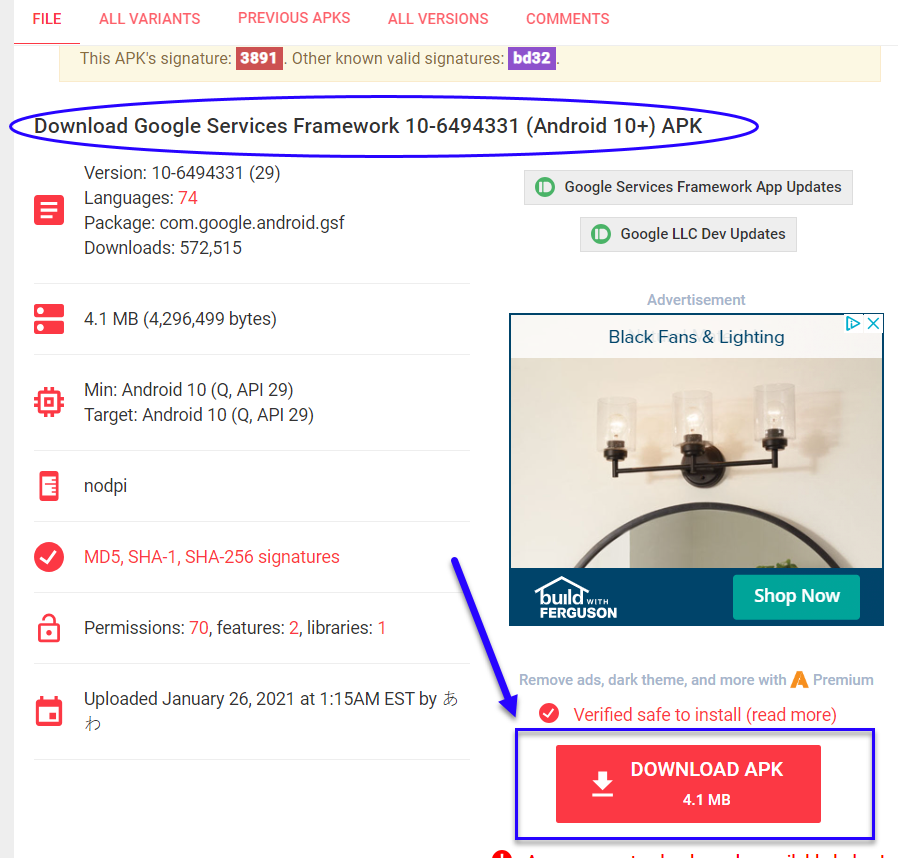
If you have the Fire 7 (12th Generation), the Fire HD 8 (12th Generation), or the Fire Max 11, click on the link directly below, then select the red Download APK box:
Google Services Framework 10-6494331 (Android 10+)
If you have the Fire 7 (9th Generation), the Fire HD 8 (8th, 9th, or 10th Generation), or the Fire HD 10 (9th or 11th Generation), click this link and then select the red Download APK box:
Google Services Framework 9-4832352 (Android 9.0+)
If you have the Fire HD 6 (any version), the Fire 7 (7th Generation or older), the Fire HD 8 (7th Generation or older), the Fire HDX 8.9, or the Fire HD 10 (7th Generation or older), click this link and then select the red Download APK box:
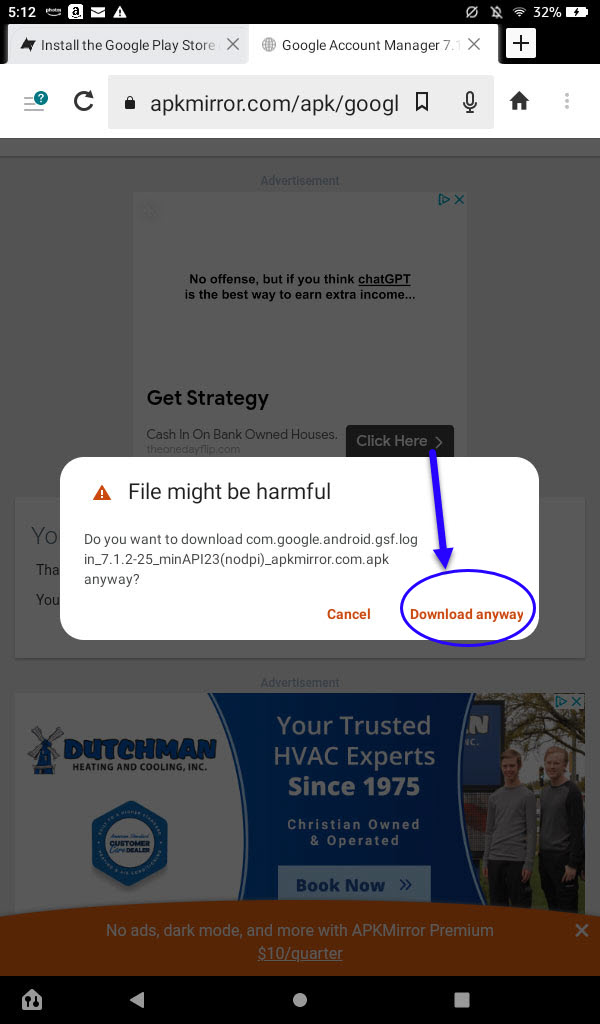
You will most likely get a "File might be harmful" popup. This your computer/tablet asking you if you're sure. Simply click the download anyway. The file is harmless, and is required to make things work.
Step 4b - Download Is The Google Services Framework APK File
If you have the Fire 7 (12th Generation), the Fire HD 8 (12th Generation), or the Fire Max 11, click on the link directly below, then select the red Download APK box:
Google Services Framework 10-6494331 (Android 10+)
If you have the Fire 7 (9th Generation), the Fire HD 8 (8th, 9th, or 10th Generation), or the Fire HD 10 (9th or 11th Generation), click this link and then select the red Download APK box:
Google Services Framework 9-4832352 (Android 9.0+)
If you have the Fire HD 6 (any version), the Fire 7 (7th Generation or older), the Fire HD 8 (7th Generation or older), the Fire HDX 8.9, or the Fire HD 10 (7th Generation or older), click this link and then select the red Download APK box:
Step 4c - Download Is The Google Play Services APK File
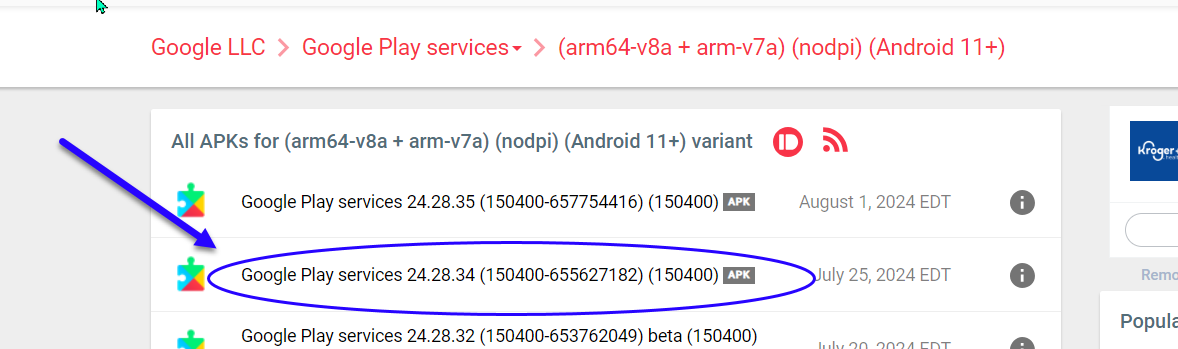
The final file to download is the Google Play Services APK file. This file will need to be selected from a number of files displayed. There will not be a single, clear download button. You will need to select the APK file that is closest to the top of the list, and it MUST NOT say "beta" in its title. You'll click on the APK File name, which opens up to the APK file download page.
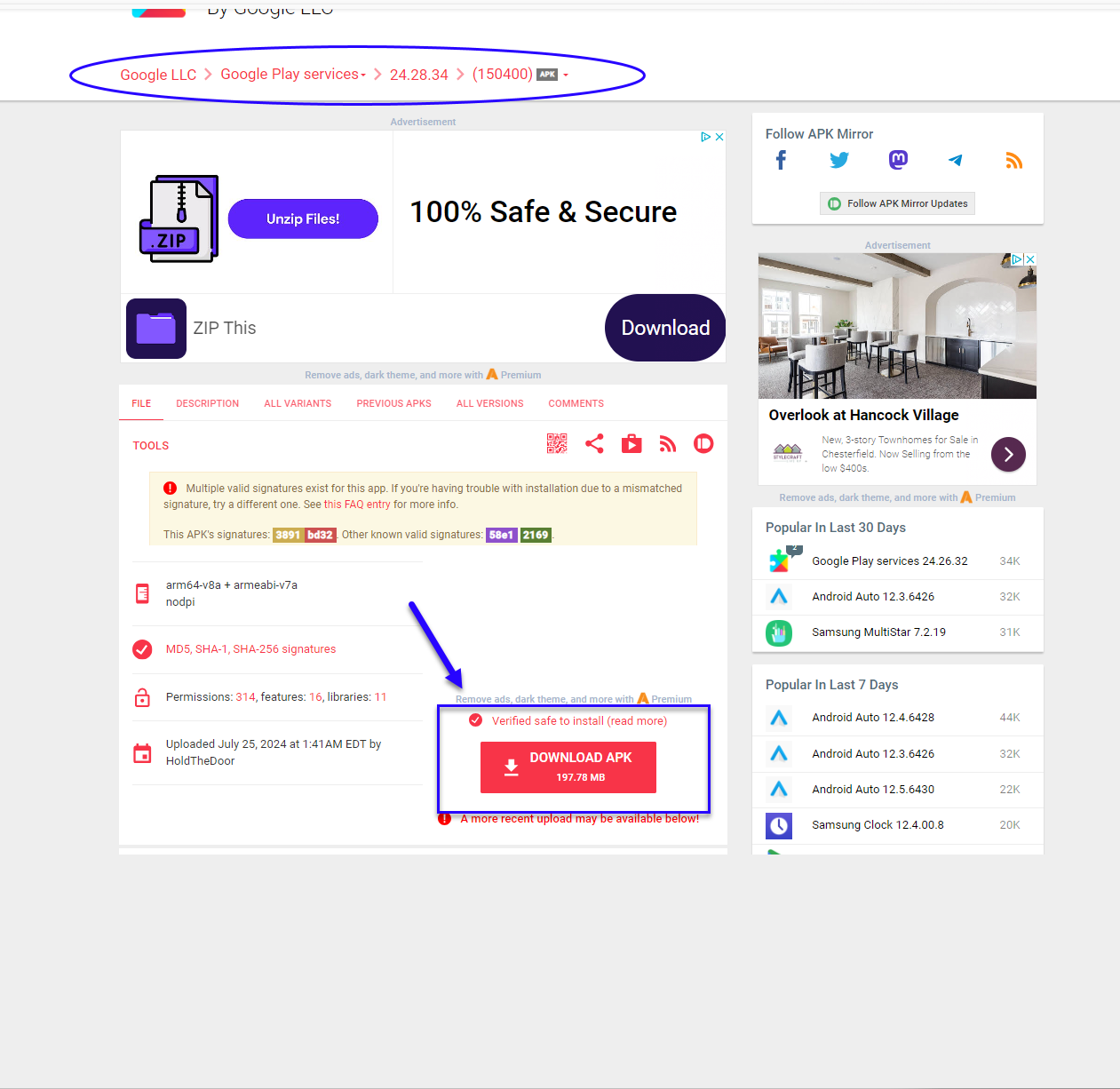
If you have the Fire 7 (12th Generation), the Fire HD 8 (12th Generation), or the Fire Max 11, click on the link directly below, then select the red Download APK box.
Google Play Services (Android 11+)
If you have the Fire HD 8 (10th Generation) and Fire HD 10 (9th and 11th Generation)
Google Play Services (Android 9.0+)
If you have the Fire 7 (9th Generation)
Google Play Services (Android 6.0+)
If you have the Fire HD 8 (8th Generation)
Google Play Services (Android 6.0+)
If you have the Fire HD 6, Fire 7 (7th Generation or older), Fire HD 8 (7th Generation or older), Fire HDX 8.9, Fire HD 10 (7th Generation or older)
Google Play Services (Android 5.0+)
Step 4d - Download Is The Google Play Store APK File
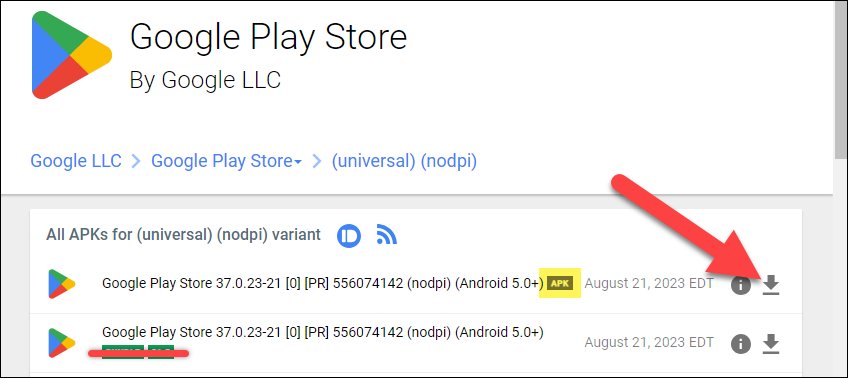
Now that we have all three APK files downloaded, we have one final file to download, which is used on all Amazon Fire models. Click on the link below. Like with the last step, select the APK that's closest to the top of the list that doesn't have the word "beta" in its file name.
Verify that you're downloading an APK file not a bundle.
Step 5 - It's now time to install the files so the Google Play Store app is added to your Kindle.
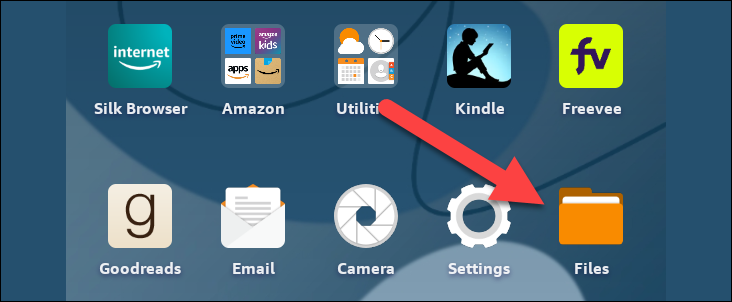
Go to your File Manager and open it.
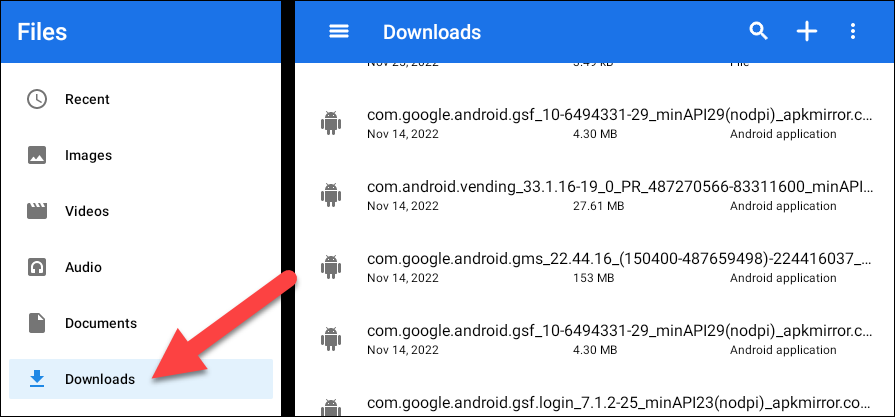
Click on Downloads, and select the list view
You will now install the APK files one at a time and in the following order. They must be installed in the exact order listed below for the Google Play Store app to be installed on your Fire tablet.
Please note, the APK file names on your device will be longer, but the file names start with those you're looking for.
- com.google.android.gsf.login
- com.google.android.gsf
- com.google.android.gms
- com.android.vending
To install the file:
- Tap the name of the file
- Select "Continue"
- Tap "Install" button
- When the file is installed, tap "Done."
Check to see if the Google Play Store is loaded. If not, restart the Kindle, then recheck. If it loads go to Step 6.
If it is still not loaded or if you received an error during the installation of the four files above, go back to Google Services APK file step and download an older version. Sometimes the OS doesn't catch up on your Kindle as fast as the APK files are listed.
Step 6 - Install the Kobo app
- Open Google Play Store App
- Search for Kobo
- Install Kobo reading app